
Setting Up Your Company Profile
Your company profile is the foundation of everything Nukipa creates for you. The more complete your profile, the more accurately the AI generates content that sounds like your brand.
Signing Up
When you create your Nukipa account, you'll be guided through a setup process:
- Enter your website URL - This is the most important step. Nukipa crawls your website and extracts key information about your business.
- Review auto-detected information - The platform uses AI to identify your company description, unique selling proposition (USP), ideal customer profile (ICP), and target audiences.
- Brand extraction - Nukipa detects your brand colors, fonts, and visual style from your website. These will be used when generating landing pages and other visual content.
What Gets Detected Automatically
After crawling your website, Nukipa fills in:
- Company name and description - A concise summary of what your business does.
- Unique Selling Proposition (USP) - What makes you different from competitors.
- Ideal Customer Profile (ICP) - Who your best customers are.
- Target audiences - Different segments you serve, with descriptions of each.
- Brand colors - Primary, secondary, and accent colors extracted from your site.
- Fonts - The typefaces used on your website.
- Writing style - The tone and voice your brand uses in its existing content.
Reviewing and Refining Your Profile
After the initial setup, navigate to Company Profile to review and adjust your profile. You can:
- Edit your company description and USP
- Add or modify target audiences
- Update brand colors and fonts
- Upload your company logo and favicon
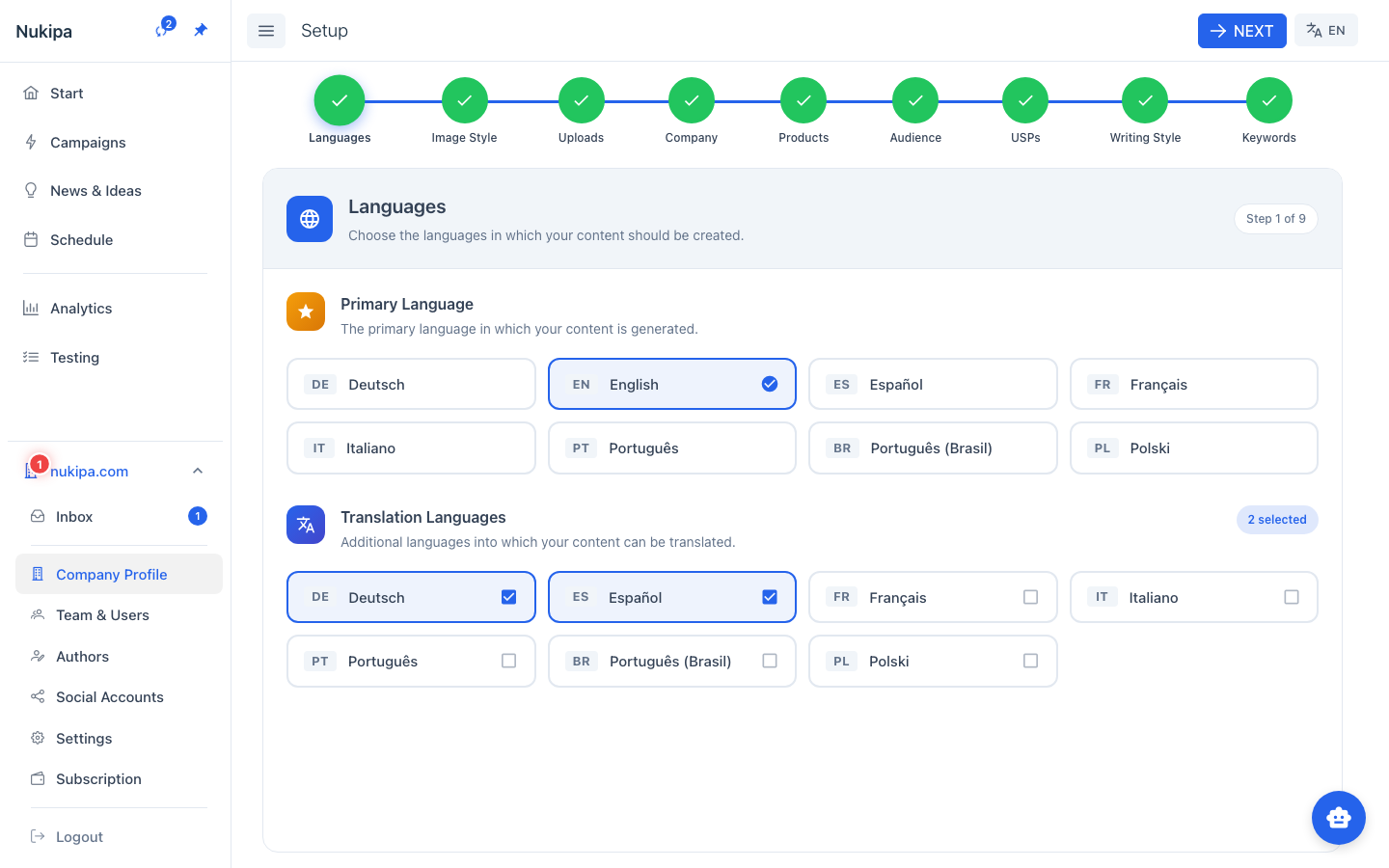
- Set your default content language
Tip: Take a few minutes to refine the AI-detected values. The more accurate your profile, the better your generated content will be. Pay special attention to the writing style field - this directly influences how the AI writes for you.
Uploading Your Logo
In the Company Profile, you can upload:
- Logo - Used in generated landing pages and blog post headers.
- Favicon - Appears in the browser tab when visitors view your published content.
Supported formats: PNG, JPG, SVG. Recommended minimum size: 200x200px for logos.
Products
You can also add your products or services to Nukipa under Company Profile > Products. The AI uses product information to generate more specific and relevant content. You can:
- Add products manually with name, description, and features
- Upload product images (the AI will auto-generate descriptions for them)
- Let the AI suggest products by analyzing your website
Products are especially useful when generating landing pages or blog posts focused on specific offerings.
What Happens Behind the Scenes
When you complete setup, Nukipa creates a knowledge base from your website content. This knowledge base is used by the AI whenever it generates content for you - ensuring every blog post, landing page, and social media post is grounded in accurate information about your business.