
Managing Your Team
Nukipa supports team collaboration. Invite colleagues to your workspace so multiple people can create, review, and publish content together.
Inviting Team Members
- Go to Users in the sidebar.
- Click Invite.
- Enter the email address of the person you want to invite.
- They receive an invitation email with a link to join your workspace.
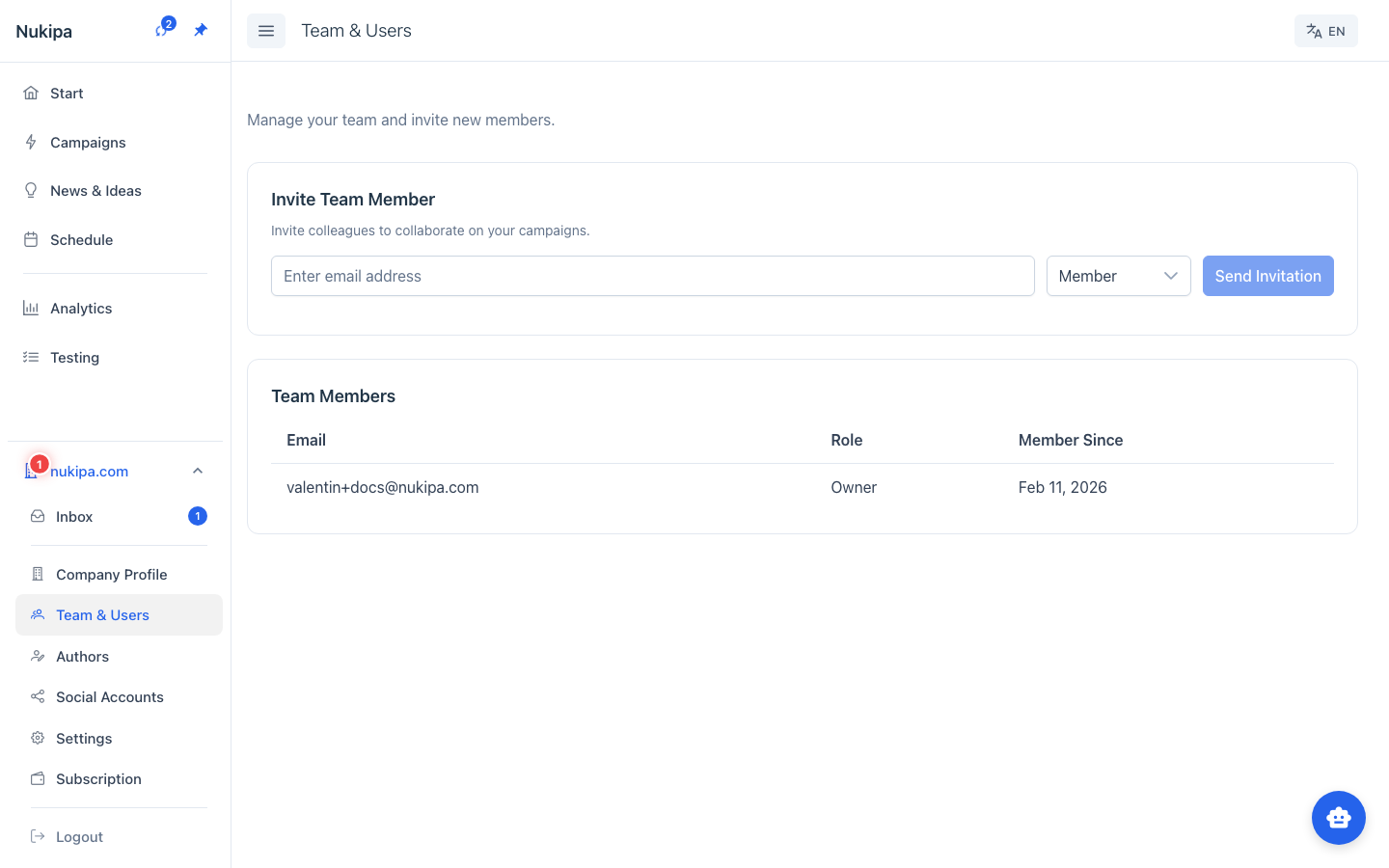
Invitation Details
- Invitations expire after 7 days.
- If an invitation expires, you can resend it from the invitation list.
- You can revoke an invitation before it's accepted.
Roles
Nukipa has two roles:
- Owner - Full access to everything, including billing, team management, and all content operations.
- Member - Access to content creation, editing, and publishing. Cannot manage billing or team settings.
Working Together
Shared Workspace
All team members see the same campaigns, blog posts, landing pages, and other content. Changes made by one person are immediately visible to everyone.
Author Profiles
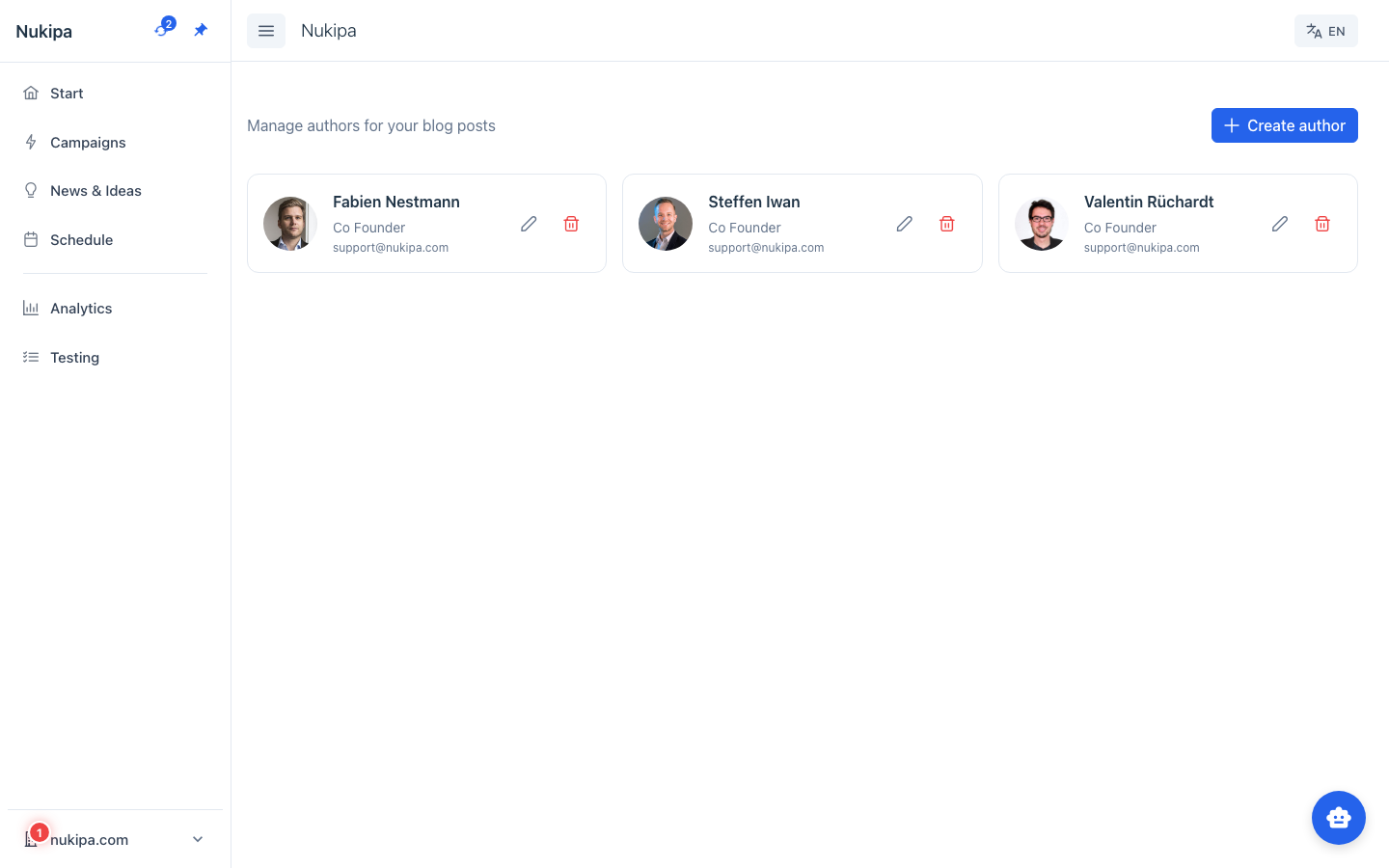
Set up Authors in the sidebar so team members appear as bylines on blog posts. Each author has a name, job title, bio, and profile picture.
AI Preferences
The AI learns from everyone's feedback. When any team member gives thumbs up or down on generated content, it helps the AI learn your collective preferences.
News Email Preferences
Each team member can independently configure their news digest frequency (daily, weekly, or off) - so the marketing lead can get daily updates while other team members receive a weekly summary.
Tips for Team Collaboration
- Assign campaigns to people. Informally designate who owns which campaign to avoid duplicate effort.
- Use the schedule view. The unified calendar shows what everyone has scheduled, preventing content overlap.
- Provide feedback on AI content. The more team members rate content, the better the AI gets at matching your brand voice.
- Set up author profiles early. This ensures blog posts have proper bylines from the start.